Getting started on Bikote
Bikote helps you find doubles partners in pickleball, padel, and tennis — matched on how you actually play. The twist: your skill picture comes from the friends who've played with you, not from rating yourself. Here's how to go from a new account to your first partner matches.
- 1
Create your account
Bikote is free to start, with a 60-day full-access trial.
- On the Welcome screen, tap “Get started” — or “Sign in” if you already have an account.
- Enter a display name, your email, and a password (8+ characters) — or use “Continue with Google” or “Sign in with Apple”.
- Add your birth year (you must be 18 or older) and choose your gender.
- Tick the box confirming that games are played at your own risk, then tap “Create account”.
- Pick your home town on the next screen so Bikote can find partners near you.
- 2
Choose your sport
Bikote is one app for pickleball, padel, and tennis.
- On first launch, tap your sport on the “Choose your sport” screen.
- To switch or add a sport later, open Settings → “Sport”. Each sport keeps its own ratings, questionnaire, and matches, and joining a new one starts its own 60-day trial.
- 3
Fill in your profile
Your profile has two parts — your personal details and your competitive profile — both reached from the ⋮ menu on the Profile tab.
- On the Profile tab, tap the ⋮ menu (top-right) → “Personal”.
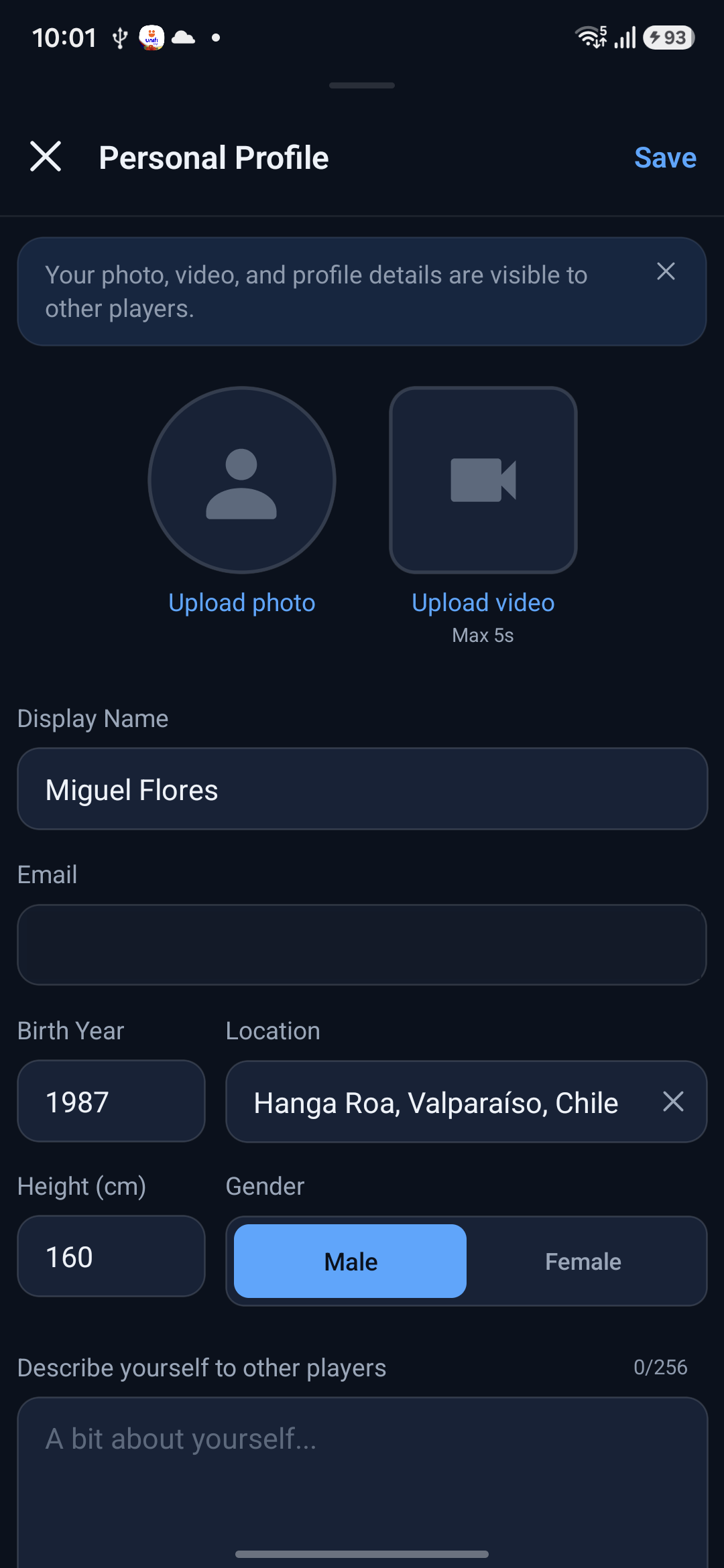
- Tap “Upload photo” to add a profile picture, and “Upload video” for an optional short intro clip.
- Fill in your display name, birth year, location, height, and a short bio, then tap “Save”.
- Back in the ⋮ menu, tap “Competitive” to set your self-ratings, preferred side, and handedness.
- 4
Get rated by your friends
This is the heart of Bikote. Instead of rating yourself, friends who've played with you rate your shots. You need at least three raters before your skill radar and partner matches switch on — so invite a few friends early. Ratings are completely anonymous: you'll see how many friends have rated you, never who.
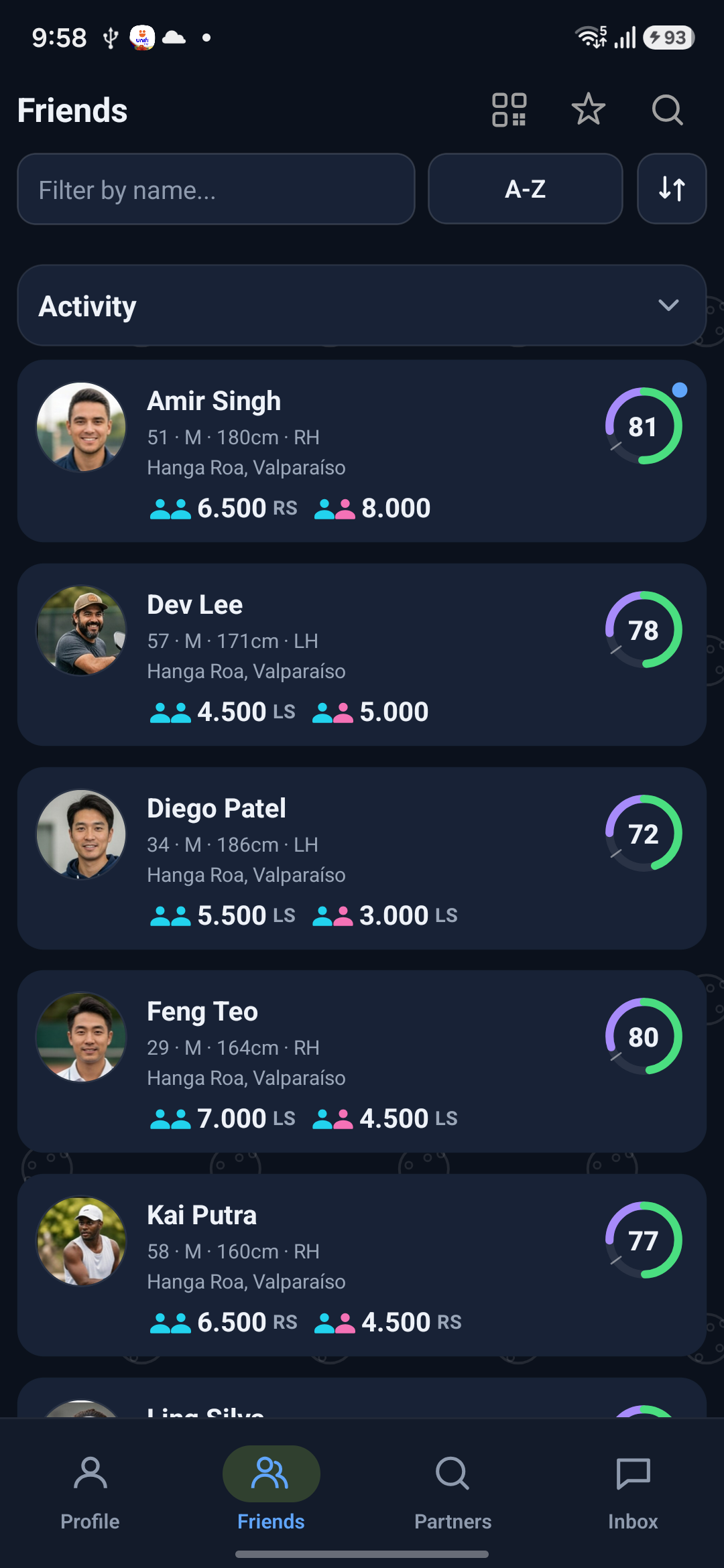
- Open the Friends tab and tap the search icon (“Find Friends”).
- Type a friend's name (at least 2 characters), then tap the add-person icon next to their result to send a request.
- At the court, tap the QR icon on the Friends tab to join a host's session — everyone in it connects at once.
- Once a friend accepts, they can open your profile and rate your shots.
- 5
Rate your friends back
Rating goes both ways — honest, specific ratings make everyone's matches better.
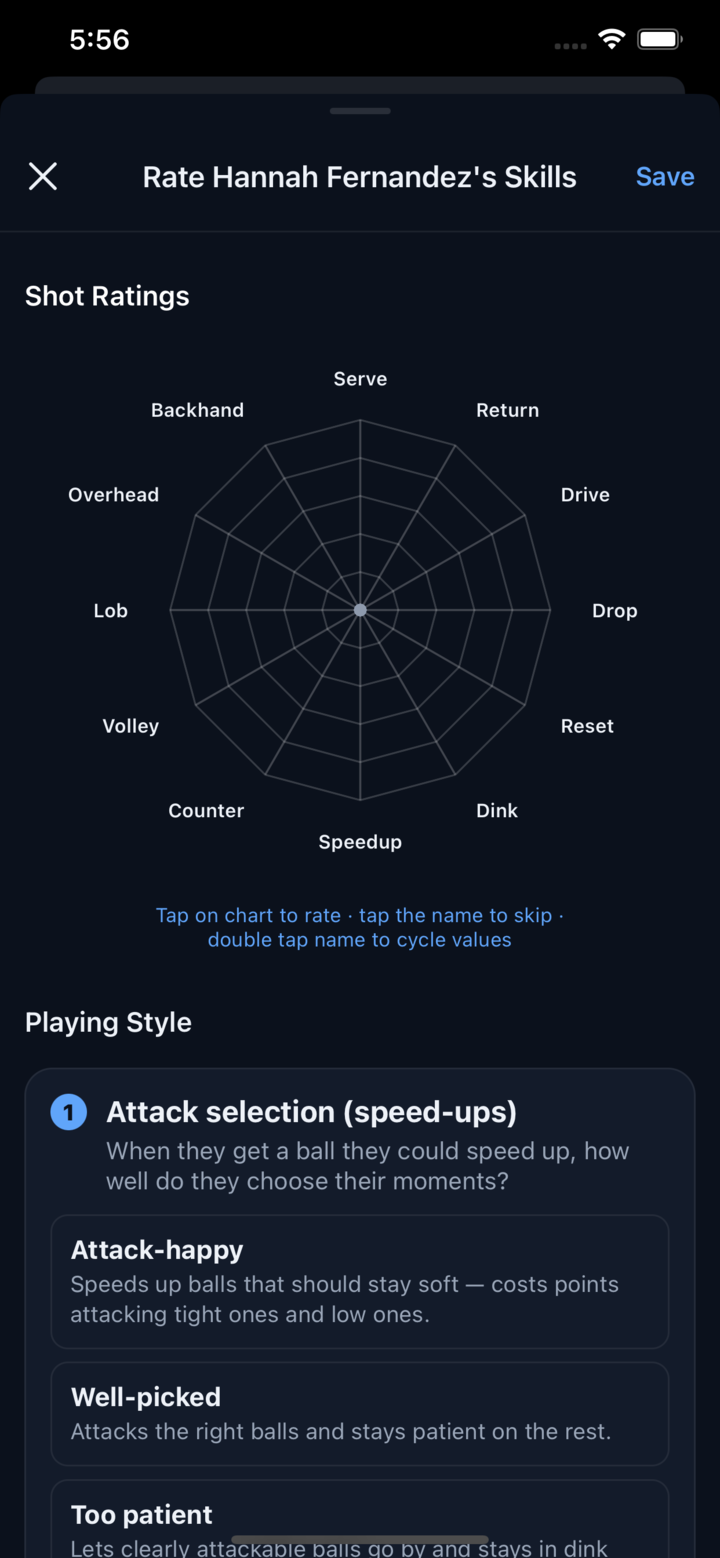
- Open a friend's profile and tap the “Rate” button.
- Tap a point on the shot radar to give that shot a 1–5 rating. Tap a shot's name to skip it if you haven't seen it; double-tap the name to cycle through values.
- Answer the “Playing Style” questions below, tapping “Haven't seen enough to say” for any you can't judge.
- Rate at least four shots, then tap “Save”. You can re-rate friends anytime as their game changes.
- 6
Check your readiness
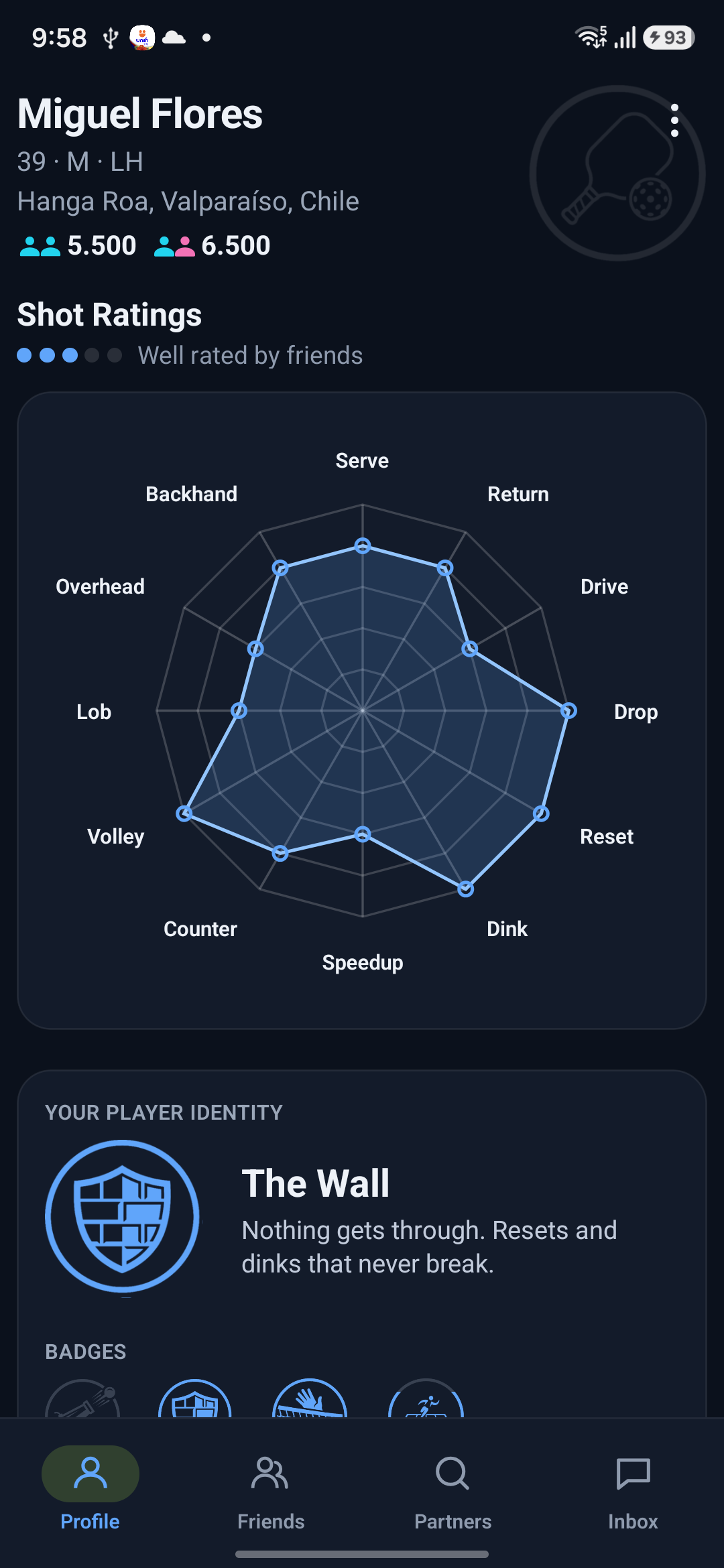
Your Profile tab shows your skill radar, your player archetype, and how your friends see you play. A “Finish setting up” checklist tracks what's left before you can match.
- Open the Profile tab. If you're not set up yet, the checklist appears at the top — work through “Ratings from friends”, “Competitive profile”, and “Compatibility”.
- Your radar goes live once three friends have rated you; until then it shows how many more ratings it's waiting for.
- 7
Complete the compatibility questionnaire
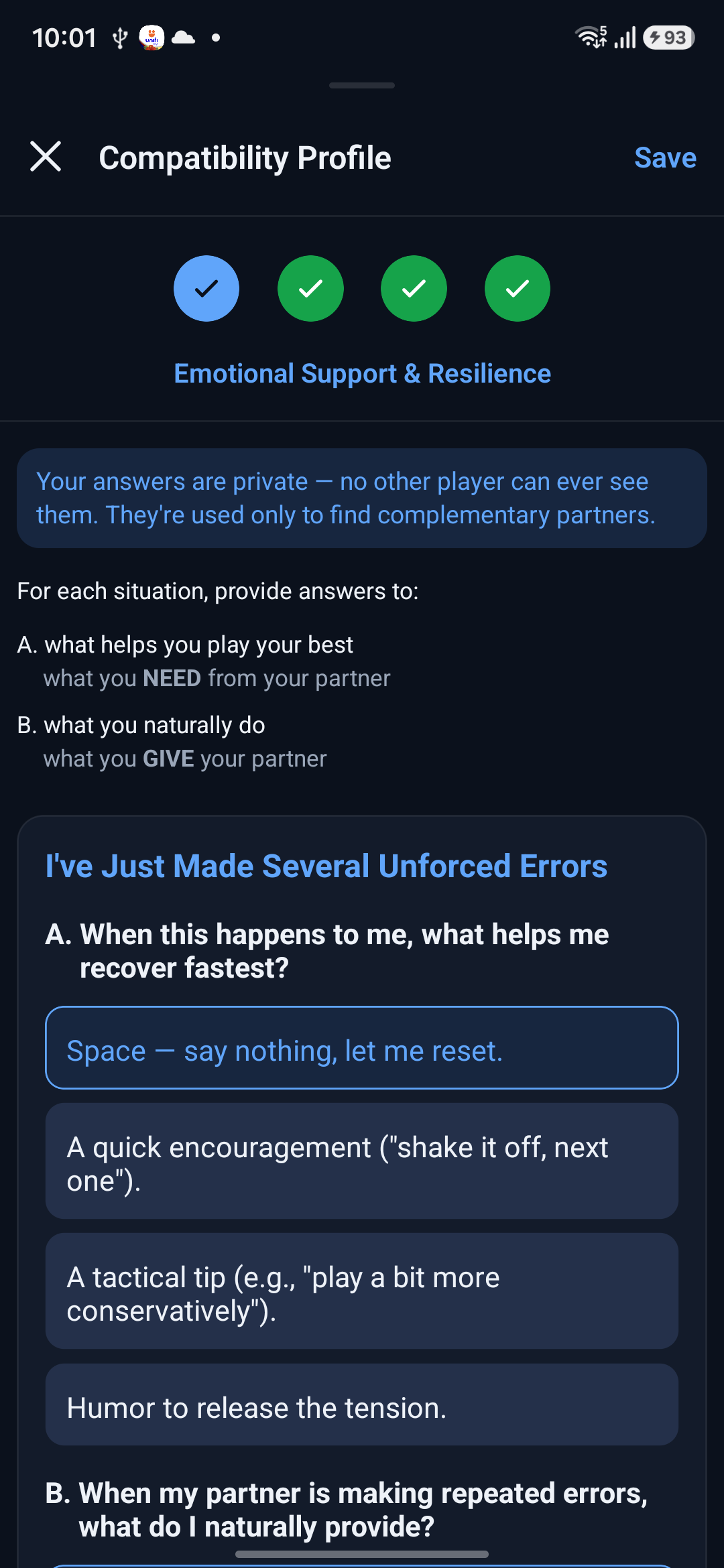
A short paired questionnaire captures how you communicate, handle pressure, and approach the game — the on-court chemistry that makes a partnership click. You fill it in yourself, and it's required before Bikote can suggest partners. Your answers are private; no other player can ever see them.
- From the Profile ⋮ menu (or the checklist), tap “Compatibility”.
- Work through the four sections — 13 questions in all. For each, pick what you need from a partner (A) and what you naturally give (B).
- The questionnaire advances as you answer; when you're done, tap “Save”.
- 8
Find your partners
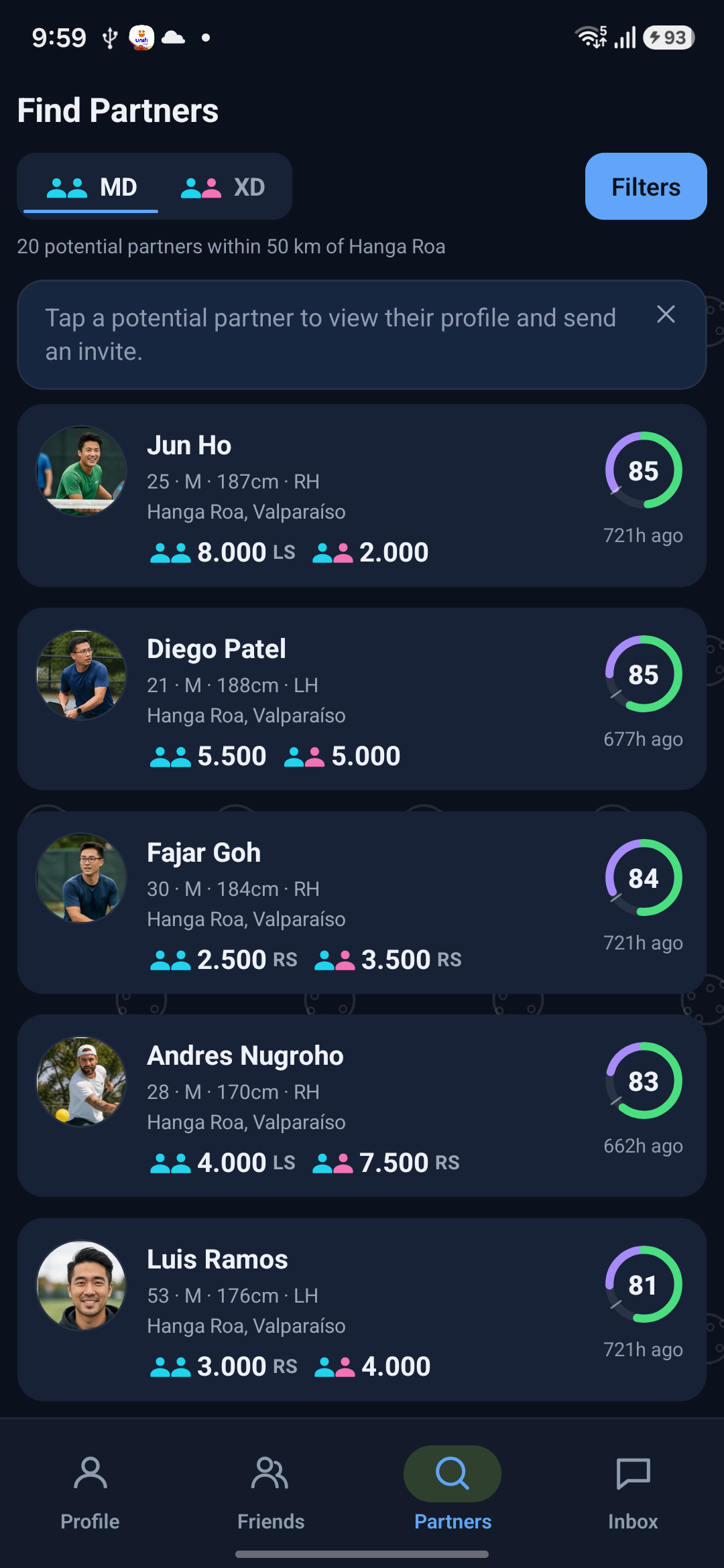
Once your profile is ready, the Partners tab ranks compatible doubles partners for you, each with a fit score.
- Open the Partners tab. Choose your format at the top, and tap “Filters” to narrow by age, rating, and — with Premium — location and positioning.
- Tap a candidate to open their profile and see the “Pairing Compatibility” breakdown: the fit score plus Mindset, Consistency, Coverage, and Selection.
- Tap “Invite to partner” to send an invitation.
- When someone accepts, you're connected — tap the message icon on their profile to start chatting.
Hosting and joining a session
Playing with a group at a court? A session QR connects everyone who's there in a couple of taps — a fast way to turn the people you're playing with into friends and future partners.
Host a session — create a QR
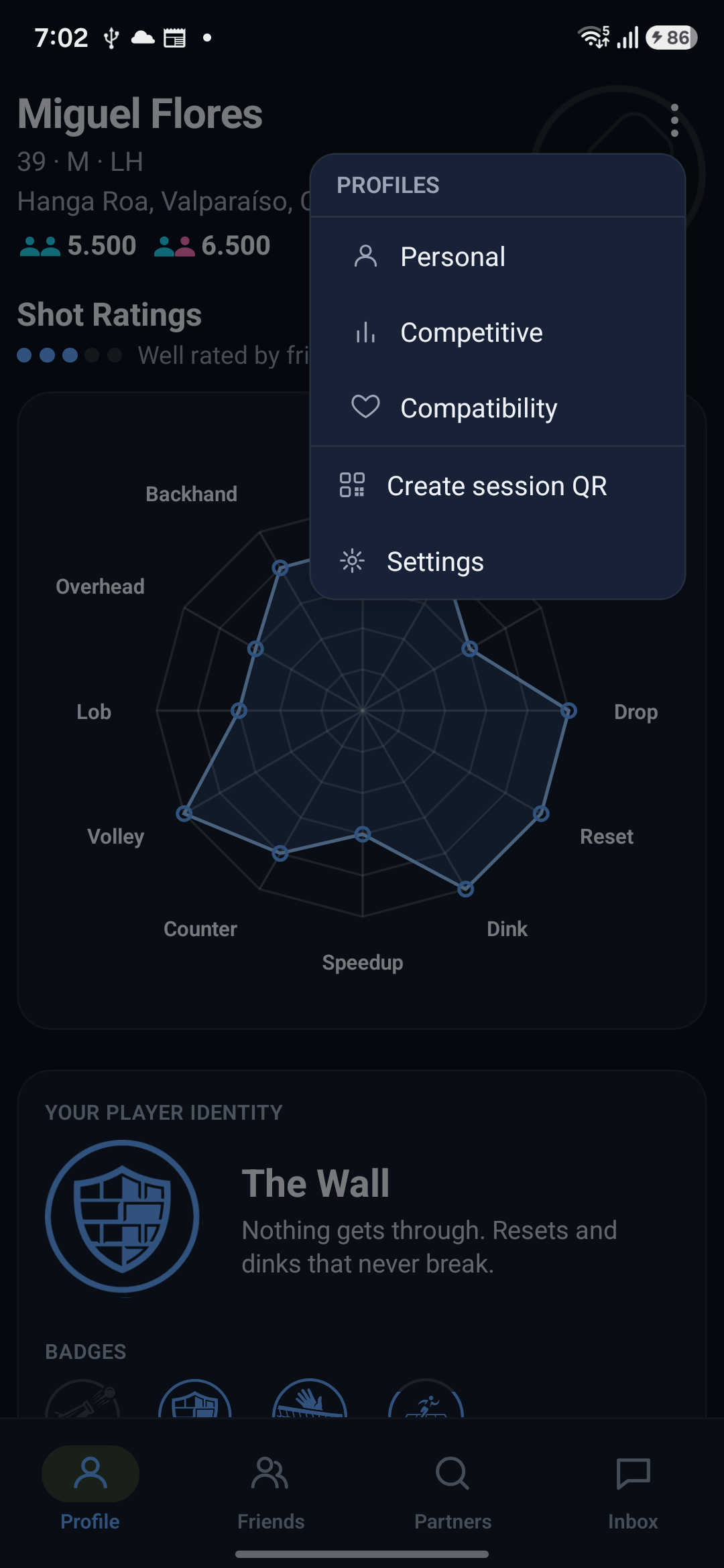
Session QR is a host feature: the “Create session QR” option appears in the Profile ⋮ menu only for accounts set up as a host for the active sport, and your Personal, Competitive, and Compatibility profiles must be complete.
- On the Profile tab, tap the ⋮ menu → “Create session QR” (it reads “Manage session” if one's already running).
- On “Where are you playing?”, confirm or pick your location, then tap “Generate QR code”.
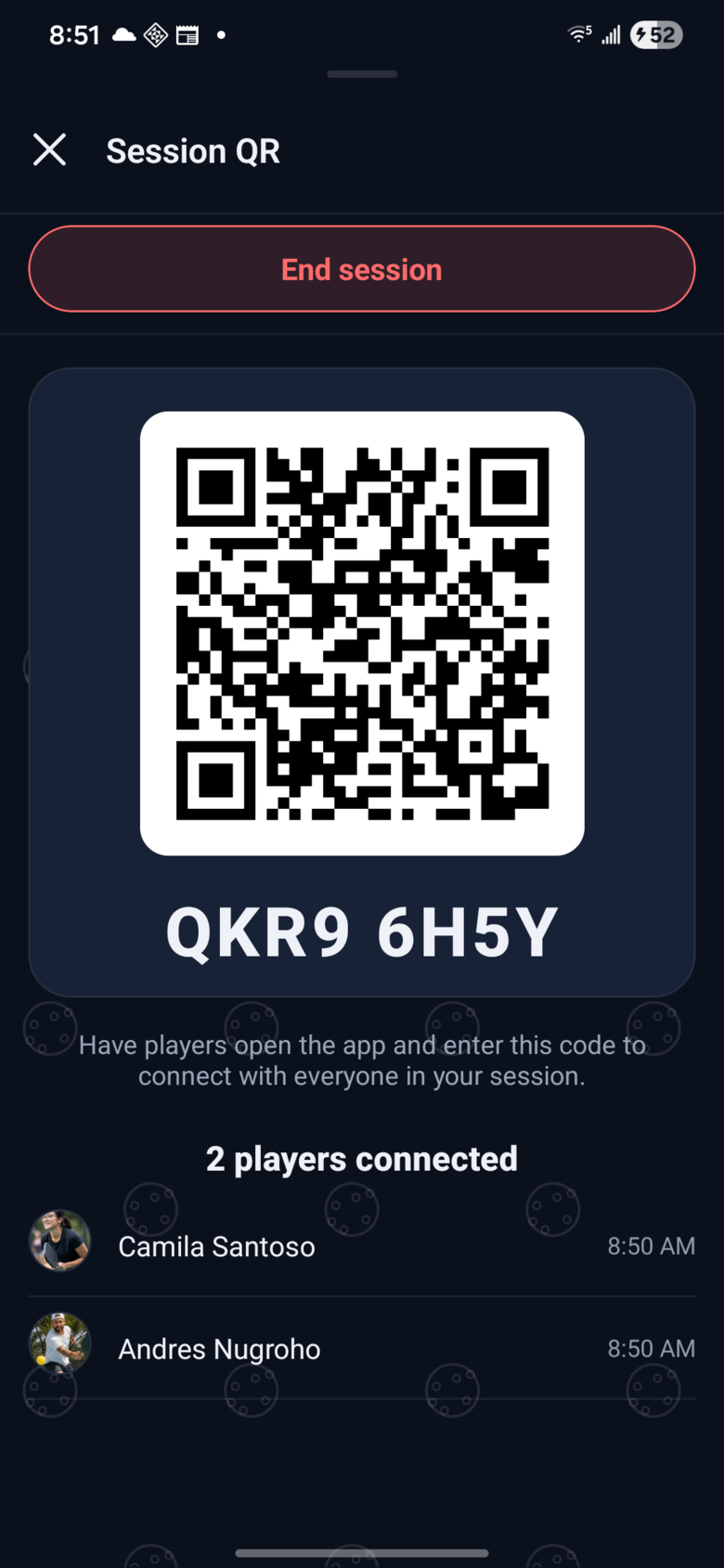
- Show the live QR to the players around you, or tap “Share QR” to send the code. The code works for 6 hours.
- Watch the “{count} players connected” counter and the roster fill in as people join.
- Tap “End session” when you're done — the connections you made stay as ordinary friends.
Join a session
Anyone can join a session a host is running — you don't need to be a host yourself.
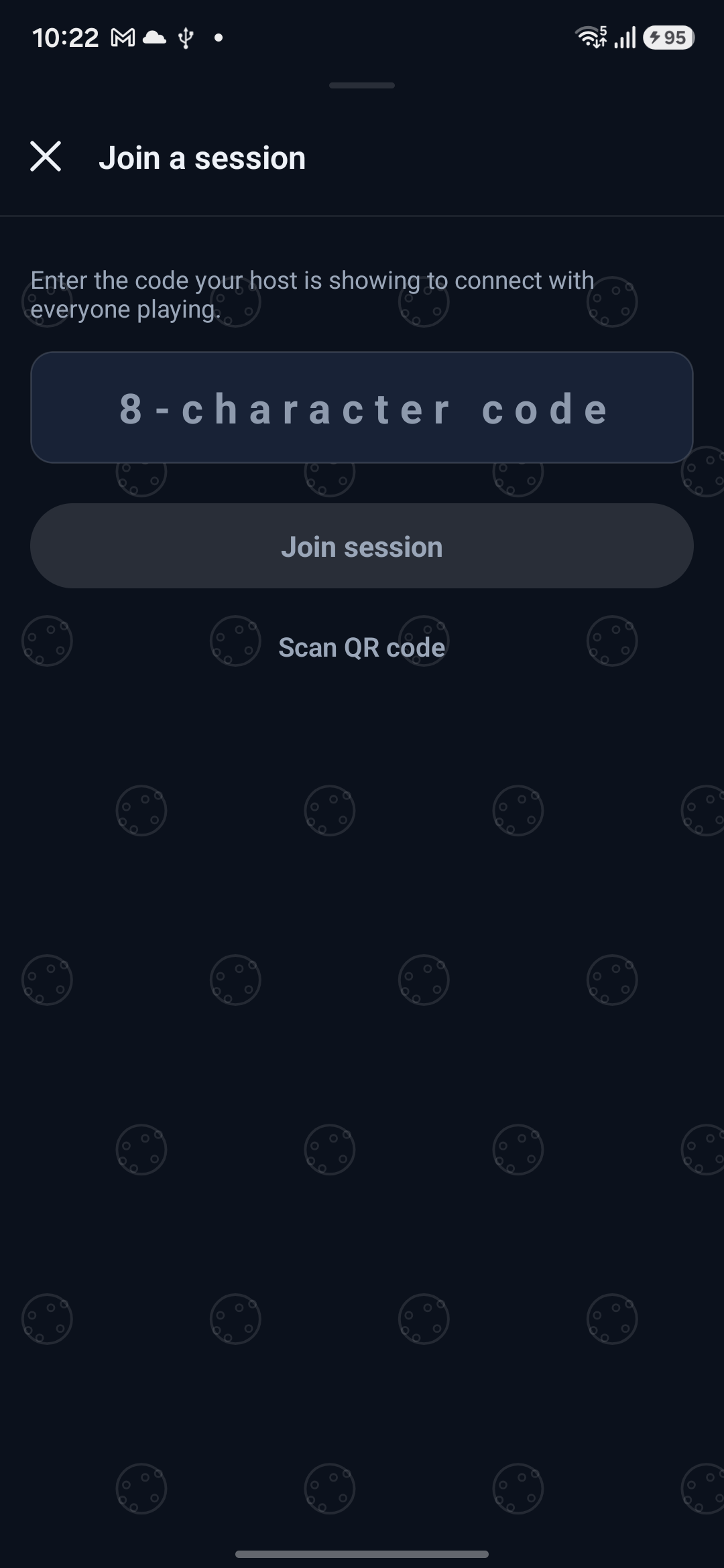
- Open the Friends tab and tap the QR icon in the header.
- On “Join a session”, tap “Scan QR code” to scan the host's screen, or type the 8-character code they're showing.
- Tap “Join session”.
- You're connected with the host and everyone else in the session, and land on the “Session Friends” list — where you can rate each other.
Going further
Manage requests in your Inbox
The Inbox tab has three sub-tabs — Messages, Friend requests, and Partner invites. Accept or decline incoming requests with the ✓ and ✕ buttons (there's a 5-second undo), and tap a conversation to reply.
Play across sports
Bikote is one app for pickleball, padel, and tennis. Switch your active sport anytime in Settings — each sport keeps its own ratings, questionnaire, and matches.
Traveling for a tournament?
Heading to an event in another city — even overseas? You don't have to post in a local group and hope someone replies. With Premium, open the Partners tab → Filters and set the Location to the city you're visiting; your matches re-center there. You can also share your player card link with players you find, or scan a session QR at the courts to connect on the spot. Bikote surfaces partners wherever other players are active, so it's also the perfect moment to bring the people you meet at the tournament onto Bikote.
Share your player card
Every player has a shareable card showing their radar and identity. Share the link to show off your game and make it easy for friends to find and rate you.
Free and Premium
You get full access to every feature for your first 60 days. After that, a free tier keeps you discoverable, rating friends, and messaging your connections, while Premium unlocks full compatibility breakdowns, every filter, and unlimited partner invites.
Privacy and safety
Rater anonymity is a hard rule — no one can ever see who rated them or how. You can report or block any user from their profile, and blocking removes them from your experience immediately. You can review our Terms of Use and Privacy Policy anytime:
Make it yours
In Settings you can change your language, switch between light and dark themes, pick your units, manage your subscription, and control your account and data.
More questions? Read the FAQ
© 2026 Yohz Software, a division of Yohz Ventures Sdn Bhd